


This post is sponsored by xTool. All opinions expressed are my own.
The xTool F2 Ultra UV combines powerful laser engraving capabilities with a compact design that's perfect for makers and small businesses.
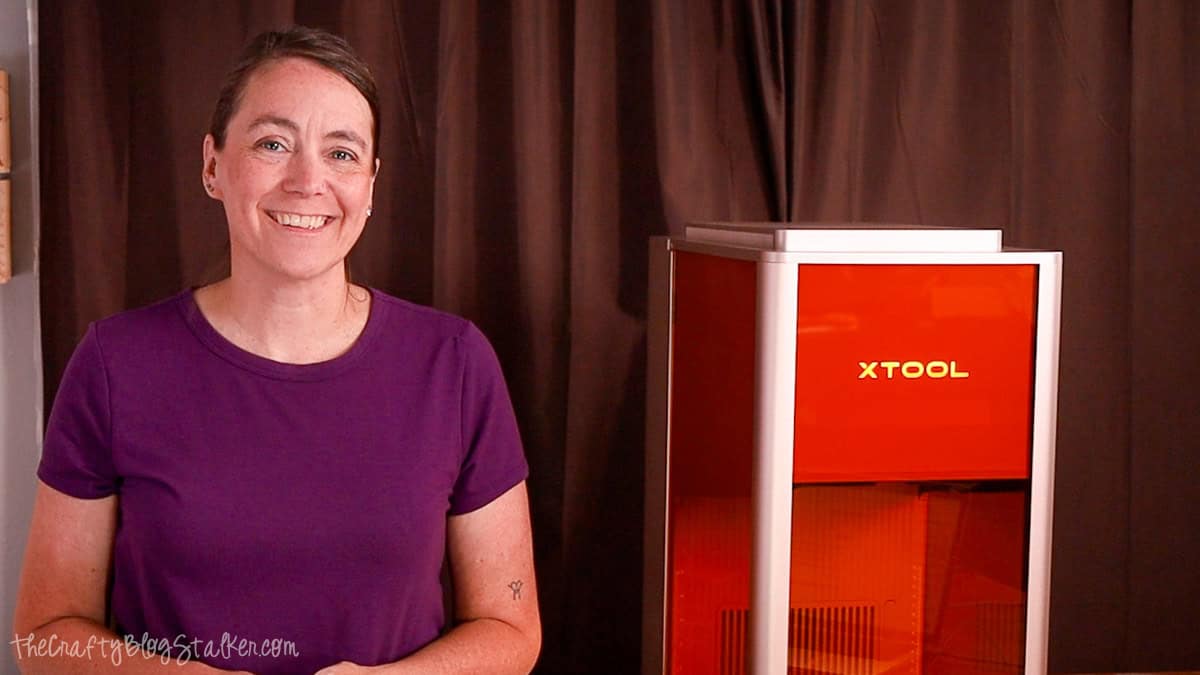
If you've been thinking about adding a laser cutter to your craft room, the xTool F2 Ultra UV is definitely a machine worth considering.
I spent time unboxing it, setting it up, and testing it on a variety of materials to see how it performs in a real crafting environment.
From cutting wood and paper to engraving crystal and metal, I wanted to explore what this machine could actually do.
In this review, I'll share what impressed me, what I wish were different, and whether I think it's worth the investment.
Jump to:
- Craft Tutorial Video
- What is the xTool F2 Ultra UV?
- Who is the xTool F2 Ultra UV for?
- Unboxing the xTool F2 Ultra UV
- Setting Up the xTool F2 Ultra UV
- Install xTool Studio
- Projects I Tested
- What I Loved
- A Few Things to Consider
- My Final Rating
- Frequently Asked Questions
- Need help choosing a laser?
- More xTool Projects
Craft Tutorial Video
If videos are your thing, you're in luck-I've got a full tutorial ready for you!
Subscribe to my YouTube channel and stay inspired with every new project.
Skill Level: Beginner to Advanced
Software: xTool Studio
Machine: xTool F2 Ultra UV
Setup Time: About 20 minutes
Best For: Makers, Small Businesses, and Hobbyists
What is the xTool F2 Ultra UV?
The xTool F2 Ultra UV is a desktop laser machine that combines a fiber laser and a diode laser in a single unit. Having both lasers dramatically expands the types of materials you can engrave and cut without needing multiple machines sitting on your craft table.
One of the biggest things that sets this machine apart is its versatility. It can engrave coated metals, stainless steel, crystal, wood, leather, paper, acrylic, slate, and many other materials. It also introduces features like wood embossing and inner crystal engraving that simply aren't possible on many hobby lasers.
Even though it offers professional-level capabilities, I found the machine surprisingly approachable. The setup was straightforward, and xTool Studio made getting started simple.
Unlike most hobby laser machines that use only diodes, the xTool F2 Ultra UV combines a fiber laser and a diode laser in a single device. Each laser excels with different materials, giving you far more versatility than a single-laser machine.
Who is the xTool F2 Ultra UV for?
After spending time with the F2 Ultra UV, I think it's an excellent fit for hobbyists ready to move beyond entry-level laser projects, small business owners creating personalized products, and makers who want the flexibility of both fiber and diode lasers in one machine.
If your primary focus is engraving metal, crystal, leather, wood, and other specialty materials, this machine offers tremendous versatility in a compact footprint.
If you're coming from a Cricut or another hobby cutting machine, the F2 Ultra UV feels like a natural next step when you're ready to start engraving and cutting materials that a blade simply can't handle. It opens up entirely new project possibilities without requiring a huge industrial workspace.
Unboxing the xTool F2 Ultra UV
The xTool F2 Ultra UV arrives well packaged, with everything securely packed to protect the machine during shipping.
The machine itself only weighs about 47 pounds, but the shipping box was very heavy for me, and I could not move it myself. I had to enlist my husband's help.
Even after the machine was removed from its packaging, I still found it difficult to move around.
Because of the weight, I recommend setting up the machine where you plan to use it long-term rather than moving it in and out of storage.
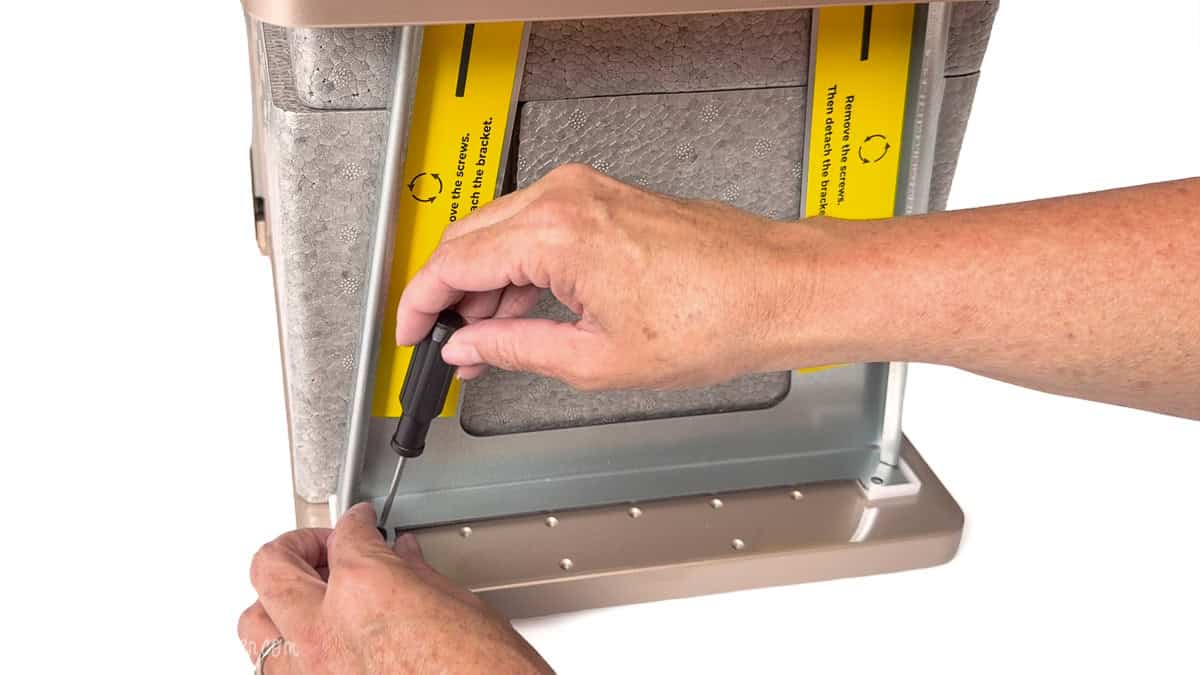
There was a little bit of assembly required, or rather disassembly of the braces to protect the machine during shipping. A Quick Start Guide is included that walks you through those steps.
What's Included in the Box
Inside the box, you'll find the xTool F2 Ultra UV, the touchscreen controller, a slatted work panel, a vent hose, a USB data cable, and the accessories needed to get the machine up and running.
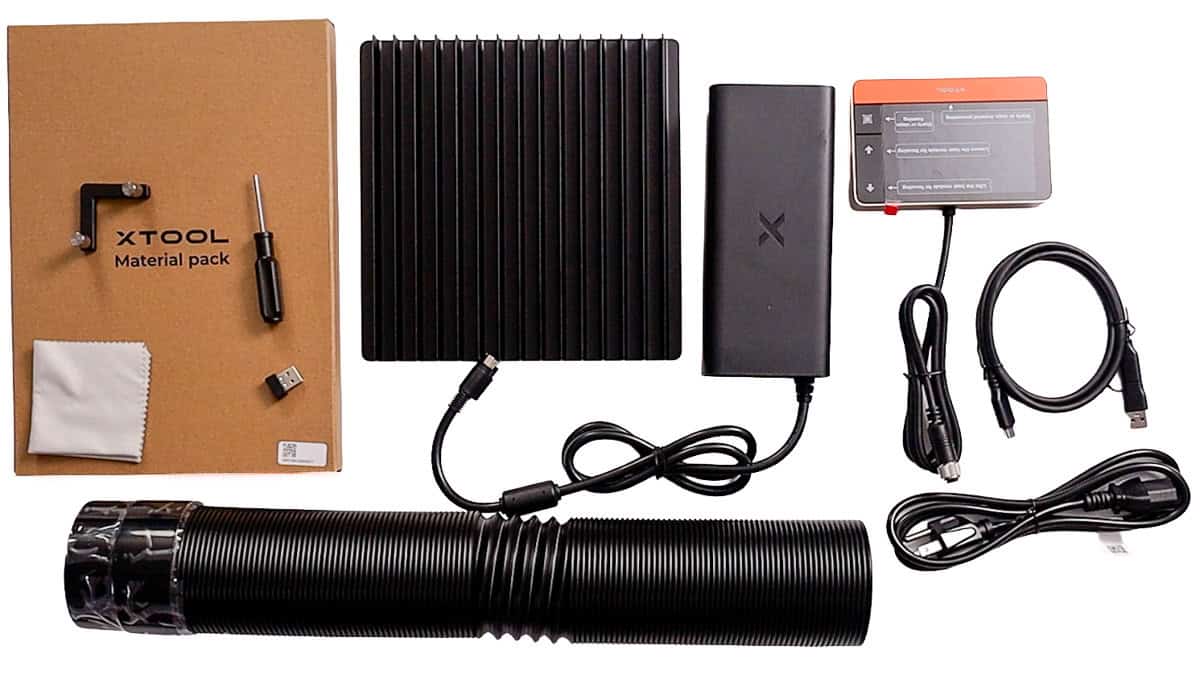
The Inner Engraving Lens and riser are packed inside the laser. They aren't included in this image because I hadn't unpacked them yet.
| F2 Ultra UV | Laser Machine |
| Touchscreen | Starts Projects |
| Vent Hose | Exhaust |
| Slatted Panel | Airflow |
| USB Cable | Data Transfer |
| Inner Engraving Lens | Crystal Engraving |
| Riser | For Crystal Engravings |
One small detail I really appreciated was the included USB cable. One end connects to the laser with USB-C, while the computer end includes both USB-A and USB-C connections. That means whether your computer is older or newer, you won't need to purchase a separate cable.
It's also worth noting that it is important to use the cable included with the machine. This cord is designed to reliably transfer project files between your computer and the laser.
Setting Up the xTool F2 Ultra UV
Getting the F2 Ultra UV ready to use was much easier than I expected. From opening the box to having my first project ready to engrave only took about 20 minutes.
Install the Vent Hose
One of the most important setup steps is connecting the exhaust hose.
Like most laser machines, the F2 Ultra UV produces smoke and fumes when engraving or cutting certain materials. Those fumes should always be vented outdoors or through a compatible filtration system. In my workshop, I simply routed the hose through a nearby window.
Taking a few extra minutes to set up proper ventilation helps keep your workspace cleaner and safer while you're creating.
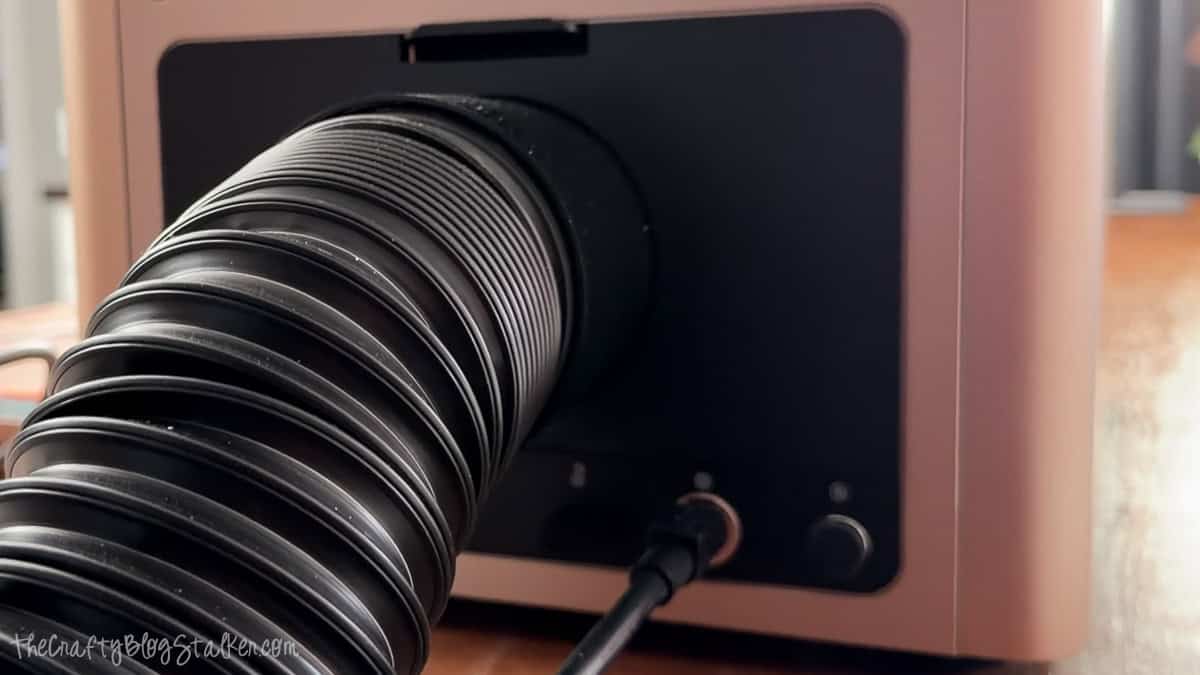
As with any laser engraver, always follow xTool's recommended safety guidelines and never leave the machine unattended while it's running.
Install the Slatted Panel
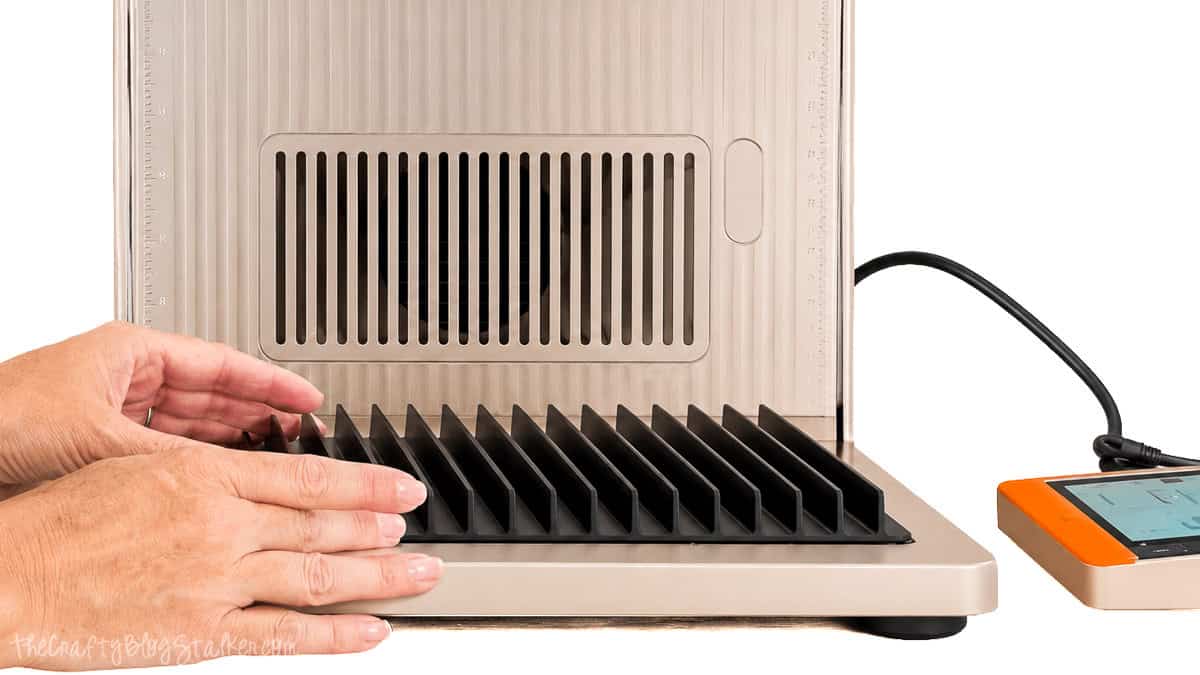
The machine includes a removable slatted panel that supports your materials during cutting and engraving.
This panel also improves airflow beneath your project, but orientation matters. Be sure the slats face the exhaust fan so air can flow freely beneath your material. Proper airflow helps remove smoke more efficiently while the laser is working.
Connect the Touchscreen Controller
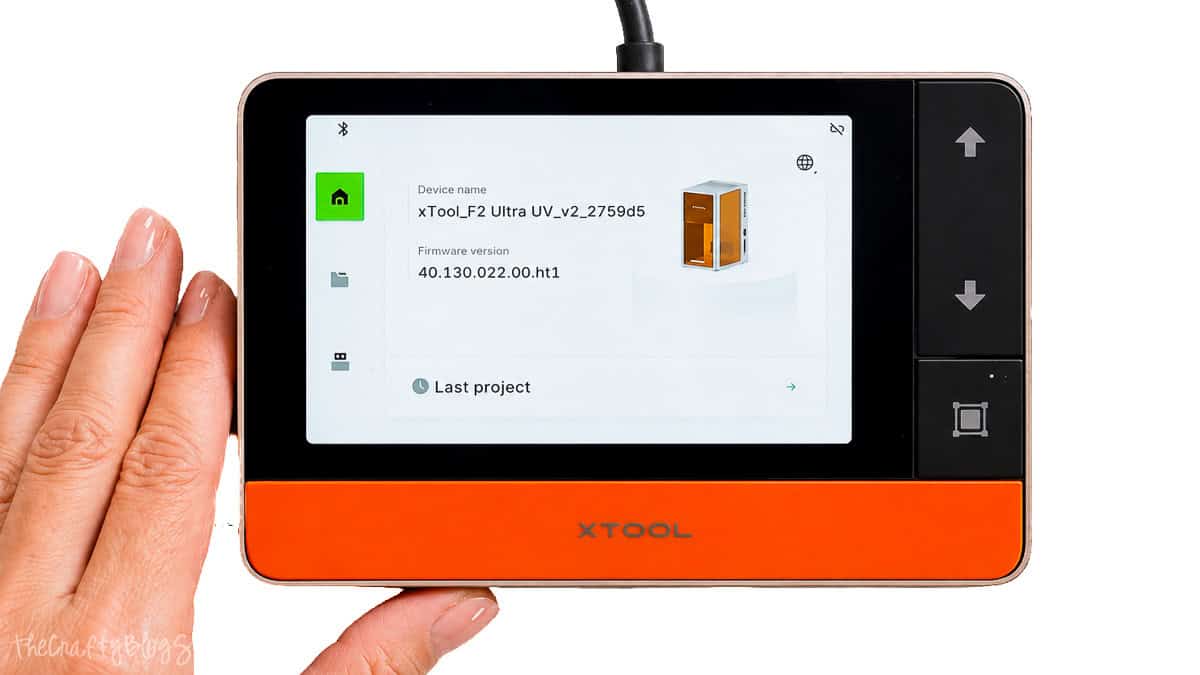
The touchscreen controller plugs directly into the side of the machine next to the power button.
Once connected, the touchscreen becomes the control center for starting projects after they've been sent from your computer. The screen also displays the estimated run time, making it easy to monitor longer jobs.
Install xTool Studio
Before making your first project, you'll need to install xTool Studio.
The software is available as a free download for both Windows and macOS. Installation only takes a few minutes, and once it's finished, you're ready to connect your machine.
Here is a direct link to download xTool Studio.
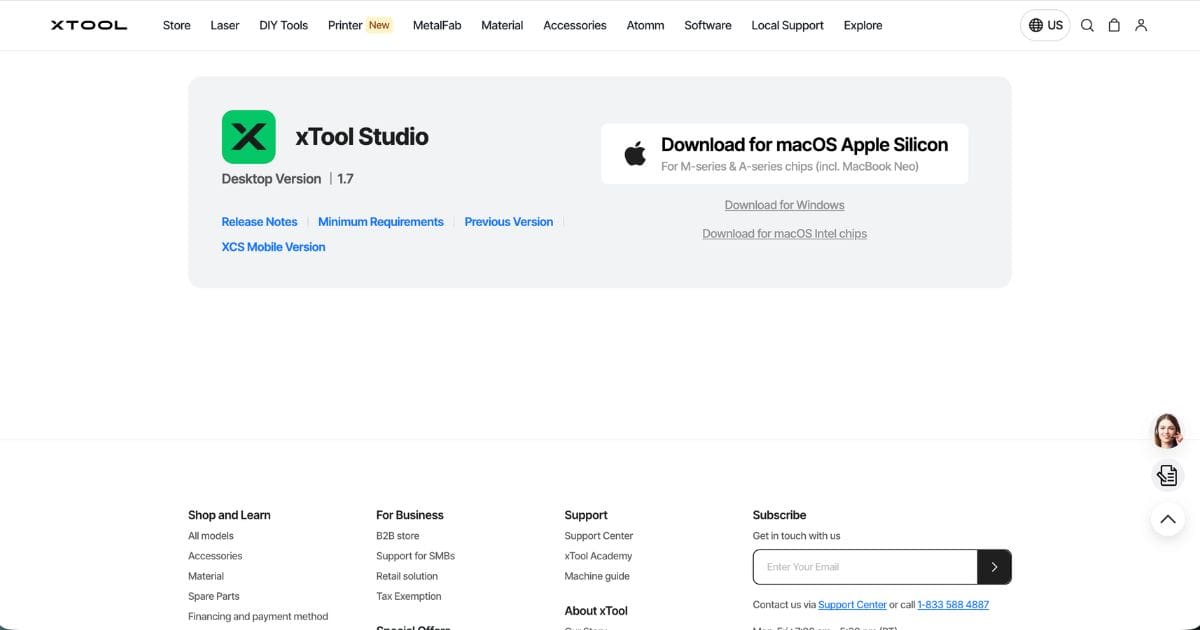
The F2 Ultra UV does not work with xTool Creative Space, which is what you use with the M1 lasers. I spent 20 minutes trying to connect to the wrong software before I realized.
The first connection is made with the included USB cable. After that, you can configure Wi-Fi so future projects can be sent wirelessly without reconnecting the cable each time.
I found the Wi-Fi setup straightforward, and once it was finished, the software recognized the machine immediately upon powering it on.
With everything connected, it was finally time to start making projects.
What is Atomm
Atomm is xTool's free online library where you'll find ready-to-make projects, tutorials, creative inspiration, and AI-powered design tools that integrate with xTool Studio.
It's a great place to browse project ideas when you're learning the machine or looking for your next laser project.
Atomm also includes AI-powered design tools that can help generate artwork or prepare images for engraving, making it a fun resource for experimenting with new creative ideas.
Every project I tested for this review came directly from Atomm.
Projects I Tested
Rather than making only the sample project, I wanted to try a variety of materials to see what the F2 Ultra UV could really do.
I intentionally chose projects that would test both the fiber and diode lasers across a variety of materials. Some focused on engraving, others on cutting, and a few showcased unique features that really make the F2 Ultra UV stand out.
Engraved Plastic Business Card
The engraved business card was the first project I made after connecting the machine.
Although it was a simple project, it immediately showed just how much detail this laser can produce.
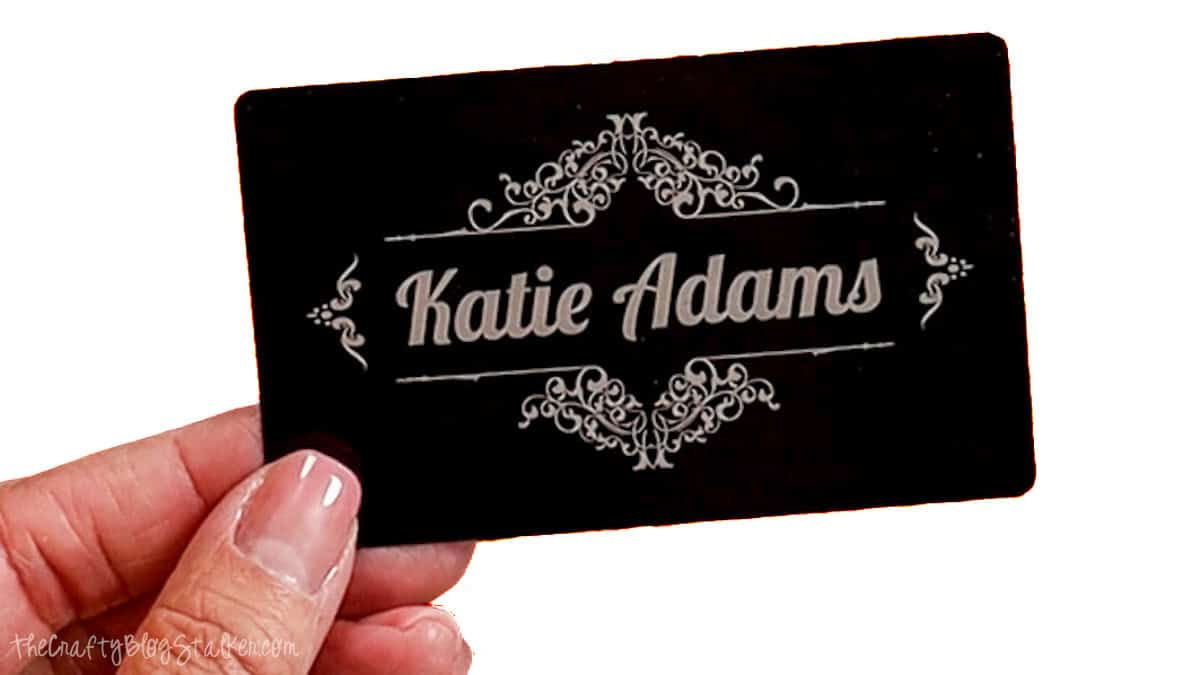
This project showed just how cleanly the fiber laser engraves coated metal.
3 mm Basswood Farm Animals
I also cut several little woodland animals from 3 mm basswood.
The cuts were clean, the details were crisp, and they would make adorable magnets, ornaments, or children's craft kits.
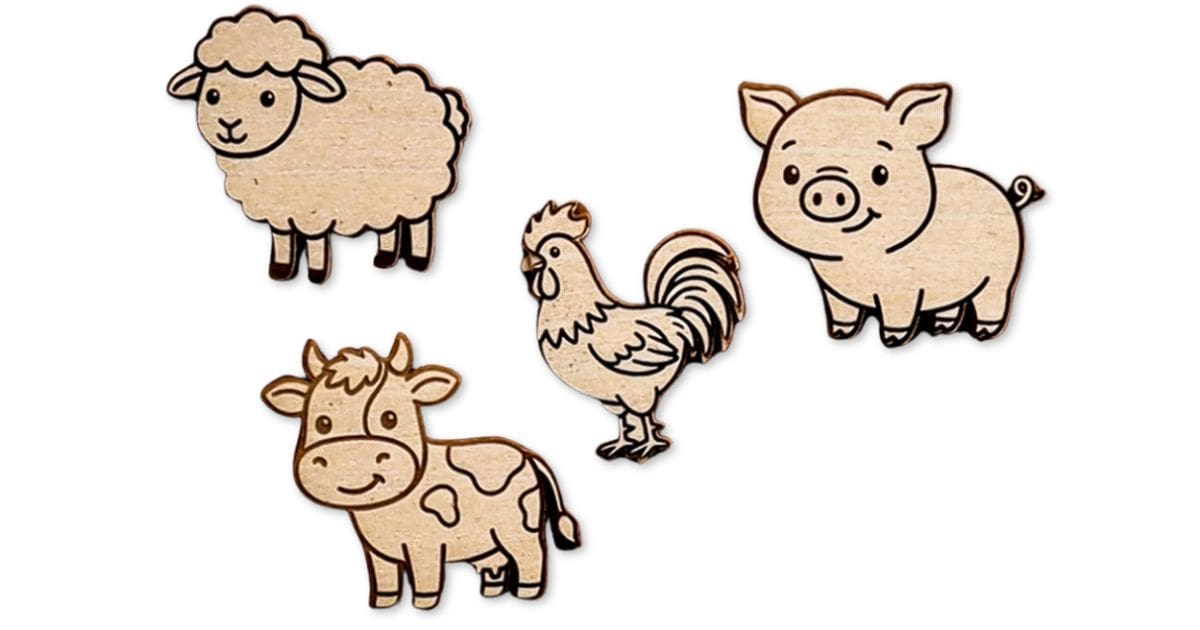
This tested the diode laser's cutting performance.
Photo Engraving on Wood
One of my favorite tests was photo engraving.
I engraved a photograph onto wood, and the amount of detail that appeared in only a few minutes was genuinely impressive.
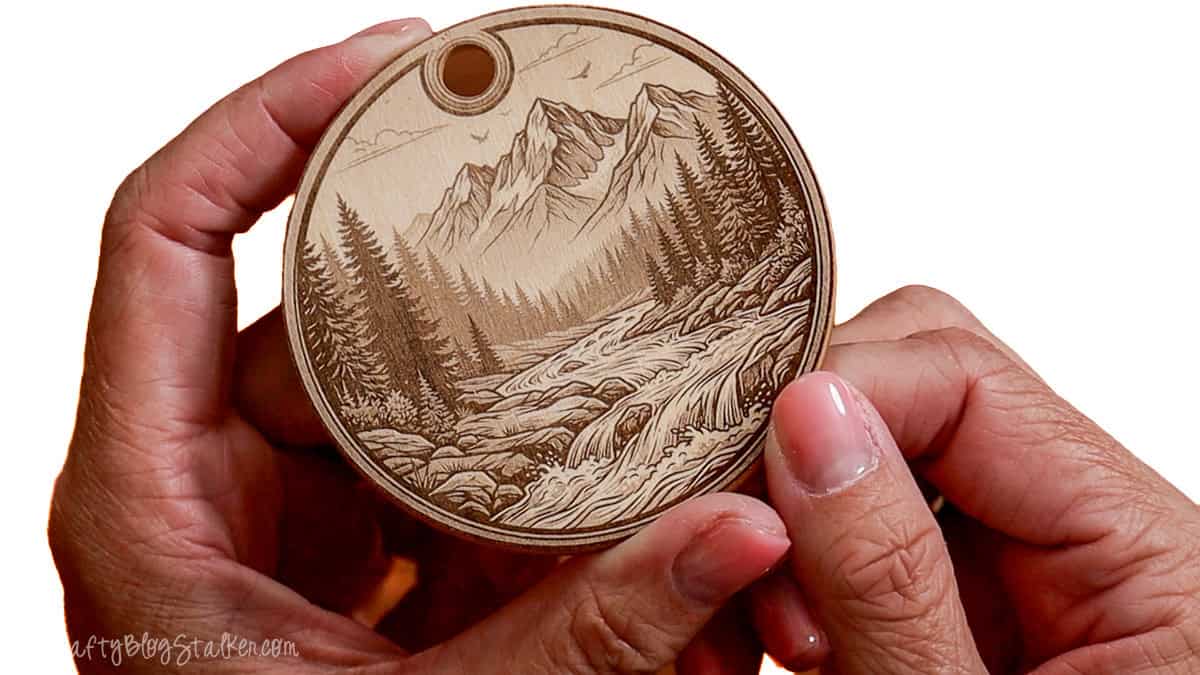
Fine details and shading were reproduced surprisingly well. It gave me confidence that this machine could handle personalized gifts and keepsakes with ease.
Intricate Layered Paper Artwork
The paper cutting surprised me even more.
Every tiny piece released cleanly from the sheet without tearing, making layered paper projects much easier than I expected.
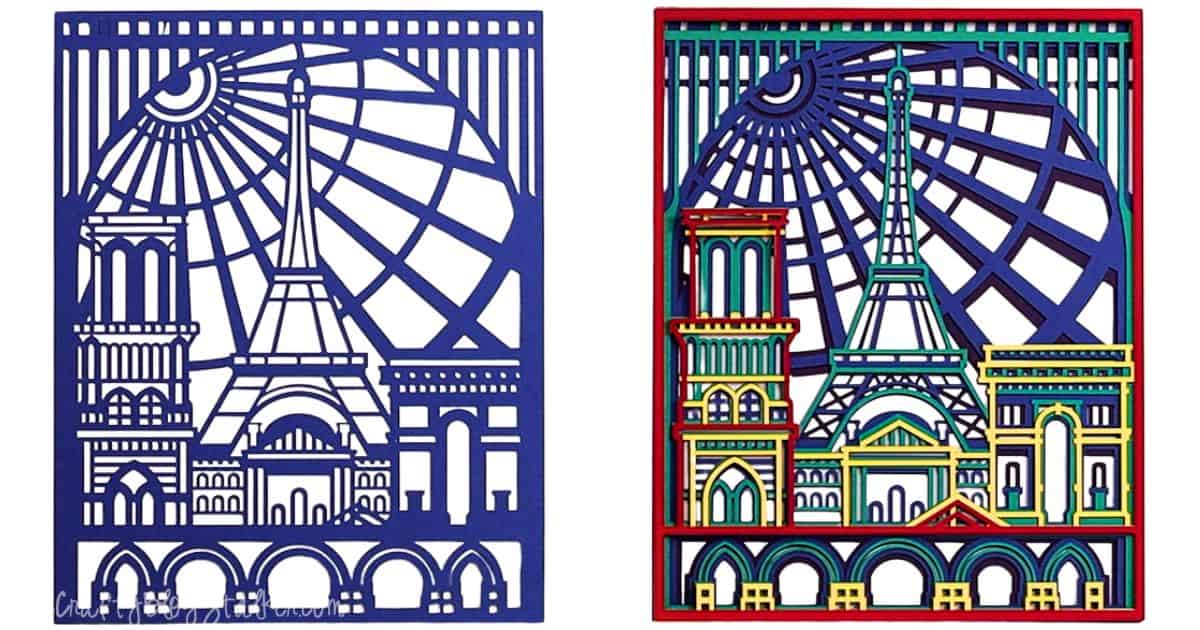
K9 Crystal Inner Engraving
Then I moved on to one of the features I was most excited about: engraving inside K9 crystal.
Seeing a photo of my little dog suspended inside the crystal keychain felt almost like magic.
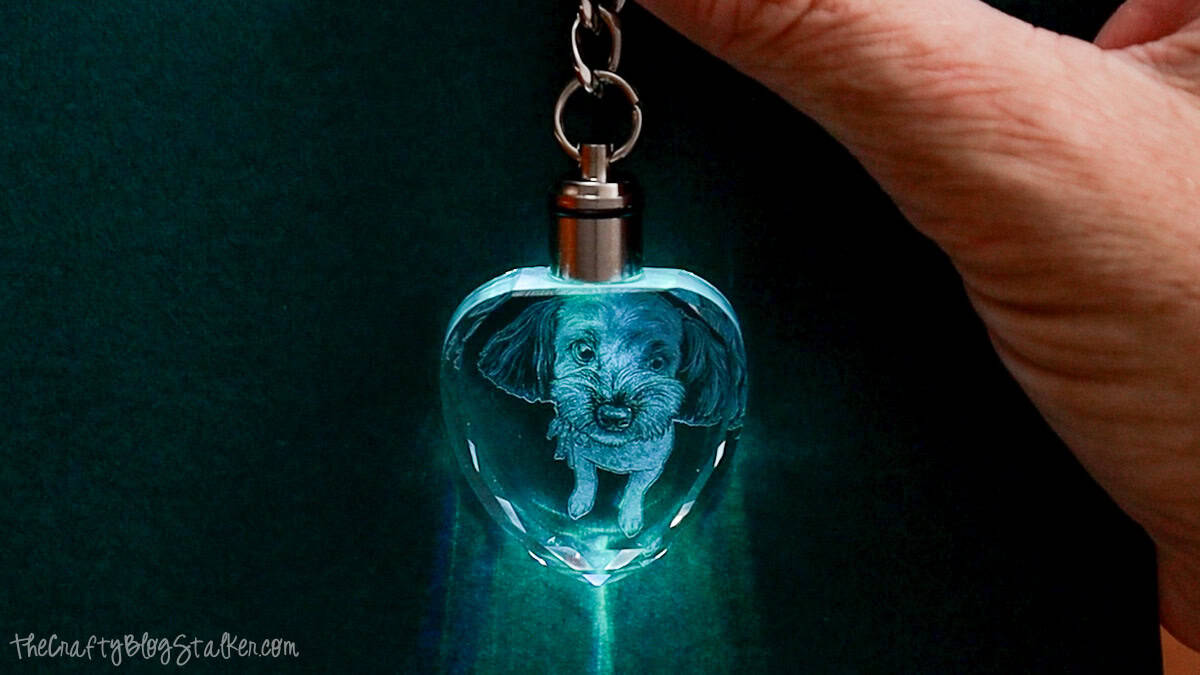
This demonstrates one of the F2 Ultra UV's signature features that very few desktop machines can do.
I love this ability so much. I have an upcoming tutorial all about inner engraving, so stay tuned!
Deep Wood Embossed Coaster
Finally, I tested wood embossing.
While this process took considerably longer than standard engraving, the finished result had incredible depth and texture.
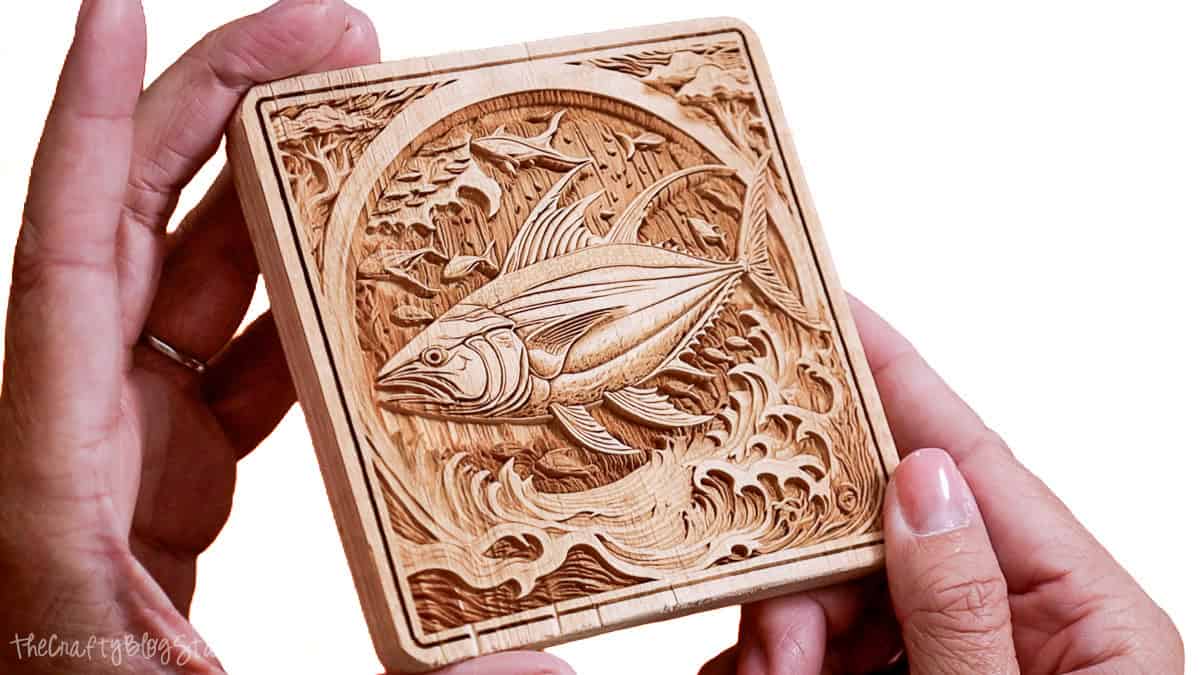
It is easily one of the coolest effects I've created with any laser machine.
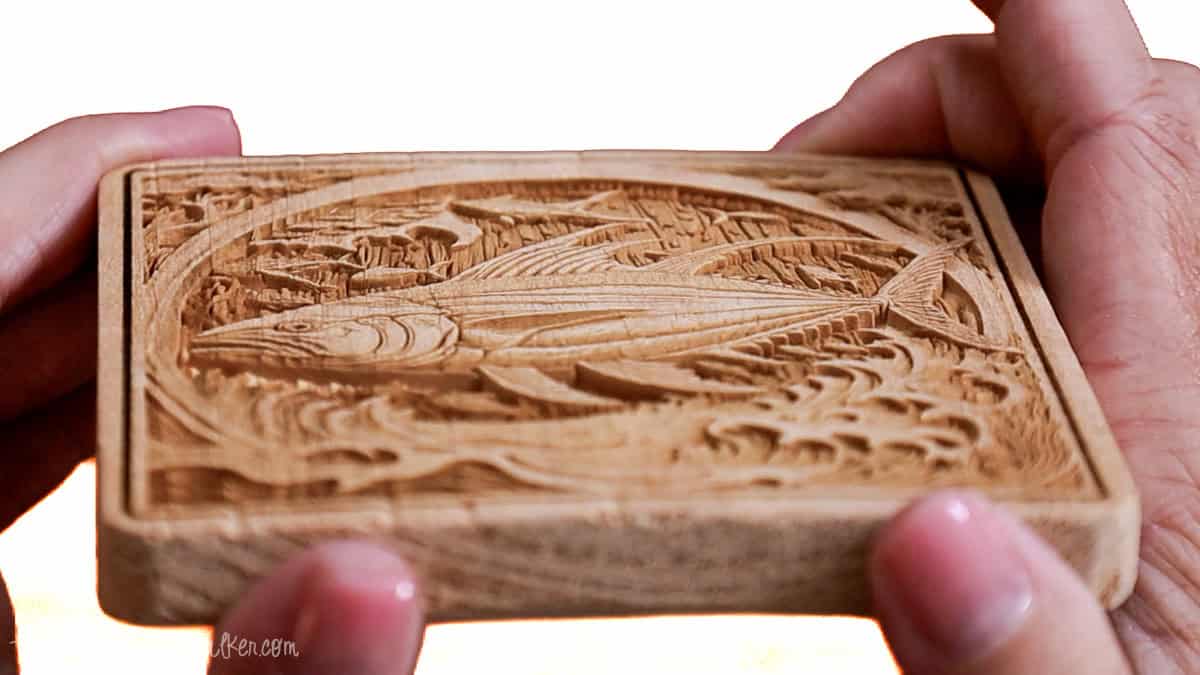
Engraved Wooden Puzzle
This puzzle layered 2 projects: the puzzle and the detailed turtle.
Again, the attention to detail really impressed me!
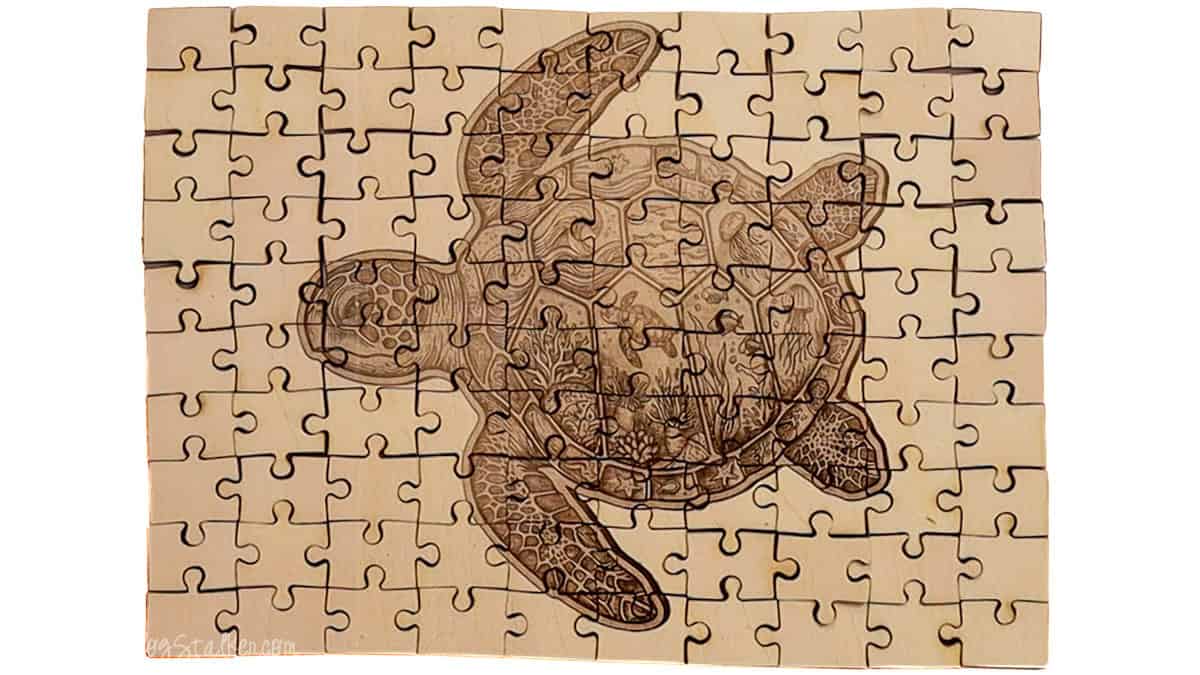
One thing I appreciated was that every project taught me something new about the machine. Rather than feeling like I was simply testing features, I walked away with finished projects I'd actually be proud to give as gifts or sell.
What I Loved
After spending time with the xTool F2 Ultra UV and testing it on a variety of materials, a few features really stood out. While every machine has its strengths, these are the ones that impressed me the most.
Fiber Laser Quality
The engraving quality was the very first thing I noticed. The detail is incredibly crisp, even on small text and intricate designs.
One feature that immediately stood out was how clean the engravings looked. Unlike many diode and CO₂ lasers, the fiber laser leaves very little charring on compatible materials. Instead of spending extra time cleaning up burned edges, most projects came out looking finished right off the machine.
Crystal Inner Engraving
Being able to engrave inside a crystal was easily one of my favorite features.
Watching a photo appear suspended inside a K9 crystal block almost felt like magic the first time I tried it. It's a capability that opens the door to personalized keepsakes, memorial gifts, ornaments, and custom jewelry that would be difficult to create with many other desktop laser engravers.
I already have several project ideas planned using this feature alone.
Wood Embossing
The wood embossing feature completely exceeded my expectations.
Unlike traditional laser engraving, embossing creates real depth and texture that you can both see and feel. My embossed coaster took several hours to complete, but the finished result looked incredible and was well worth the extra time.
If you enjoy making premium home décor, signs, or gifts, this feature is a lot of fun to experiment with.
Compact Footprint
Considering everything this machine can do, I was pleasantly surprised by its size.
The F2 Ultra UV is taller than it is wide, so it doesn't take over an entire workbench. If your craft room is already full of Cricut machines, heat presses, sewing machines, and other supplies like mine, you'll appreciate that it doesn't require a huge dedicated workspace.
Easy Setup
I expected setting up a dual-laser machine to feel a little intimidating, but it really didn't.
From unboxing to completing my first project took about 20 minutes. The Quick Start Guide walks you through the setup, and once xTool Studio is installed, connecting the machine is straightforward. Even configuring the Wi-Fi connection was quick and painless.
A Few Things to Consider
No machine is perfect, and there are a couple of things worth considering before purchasing the xTool F2 Ultra UV.
The biggest limitation for me is the work area. The cutting area measures approximately 8 × 8 inches, which is smaller than many craft materials. Since many wood blanks, acrylic sheets, and other supplies are sold in 12 × 12-inch sizes, I occasionally find myself wishing for a little more space.
If you plan to engrave longer items, xTool does offer a conveyor accessory that extends the working length. However, the maximum width remains 8 inches.
That said, increasing the work area would also mean increasing the overall size of the machine. Personally, I appreciate the compact footprint enough to make that trade-off.
My Final Rating
If I had to rate the xTool F2 Ultra UV, I'd give it 4.5 out of 5 stars.

The engraving quality is outstanding, the dual-laser system makes it incredibly versatile, and features like crystal engraving and wood embossing help it stand out from many other desktop laser engravers. My only real wish is for a larger cutting area.
If your goal is to expand beyond vinyl and paper crafts into engraving metal, crystal, leather, wood, acrylic, and dozens of other materials, the xTool F2 Ultra UV is an impressive machine that offers a tremendous amount of creative freedom.
I know I'm only scratching the surface of what it can do, and I'm already looking forward to creating many more projects with it.
Purchase your new xTool F2 Ultra UV!
Frequently Asked Questions
Yes! While the xTool F2 Ultra UV includes advanced features, I found it surprisingly beginner-friendly. The Quick Start Guide, xTool Studio software, and ready-to-make projects on Atomm make it easy to get started, even if this is your first laser engraver.
Yes, the diode laser can cut and engrave many types of opaque acrylic. Keep in mind that clear acrylic typically requires different laser technology, so always check xTool's recommended material settings before starting a project.
Yes. One of the biggest advantages of the fiber laser is its ability to engrave stainless steel and many other metals with crisp, permanent results.
Yes. With the appropriate rotary attachment, the xTool F2 Ultra UV can engrave tumblers, mugs, bottles, and other cylindrical items. Be sure to check the size compatibility for your specific project.
Absolutely. The diode laser cuts wood beautifully. During my testing, I cut 3 mm basswood with clean, precise results and very little cleanup afterward.
Need help choosing a laser?
Click a button below to ask AI what's the difference between fiber and diode lasers.
More xTool Projects
Looking for more laser inspiration? Here are more xTool tutorials, project ideas, and reviews to help you get even more from your laser.


Hi, I'm Katie!
I'm so glad you're here. Want to make something fabulous? I'm here to help!