

Surprise your kids with an Official Nice List Certificate from Santa! This free Christmas printable is easy to make with Canva.
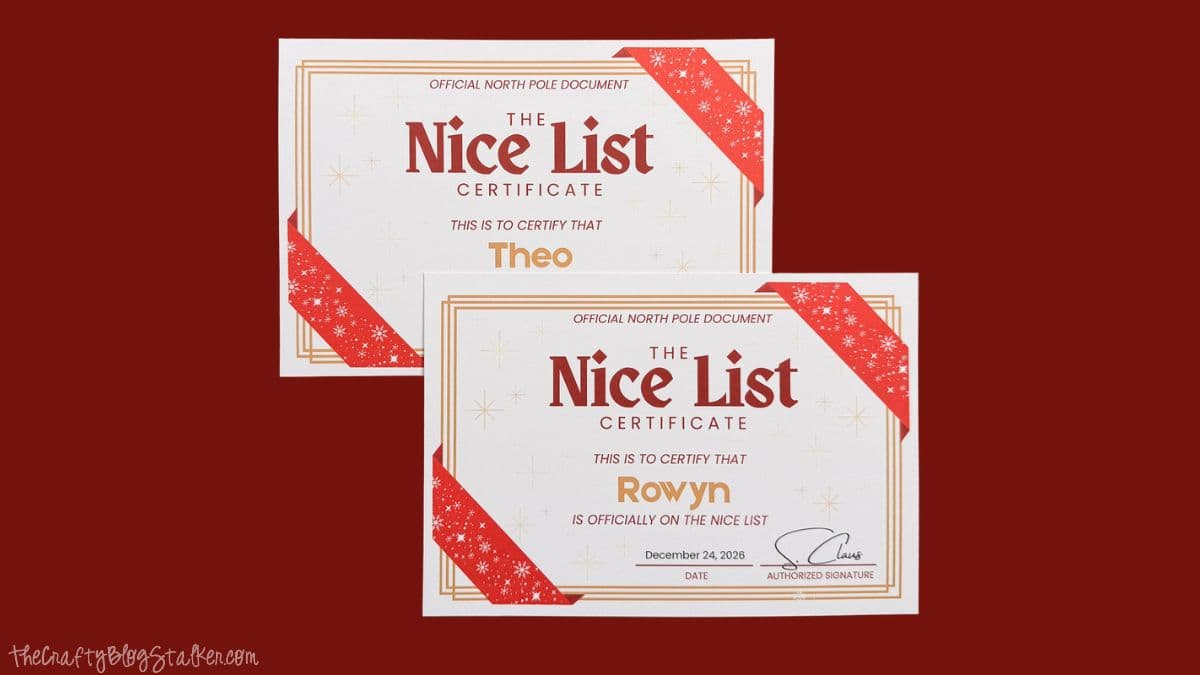
Nothing beats seeing your child's face light up when they find out they made Santa's Nice List!
This free printable Nice List Certificate adds a little Christmas magic to your home.
Give it as a surprise from Santa Claus, or have your Elf on the Shelf bring it from the North Pole.
In this tutorial, I'll show you how to add your child's name in Canva, print the certificate, and cut it out.
Jump to:
Skill Level: Beginner
Estimated Cost: Free if you have the supplies
Total Time: 10 minutes
Supply List
- Official Nice List Certificate Canva Template
- Home Printer
- White Cardstock or Printer Paper
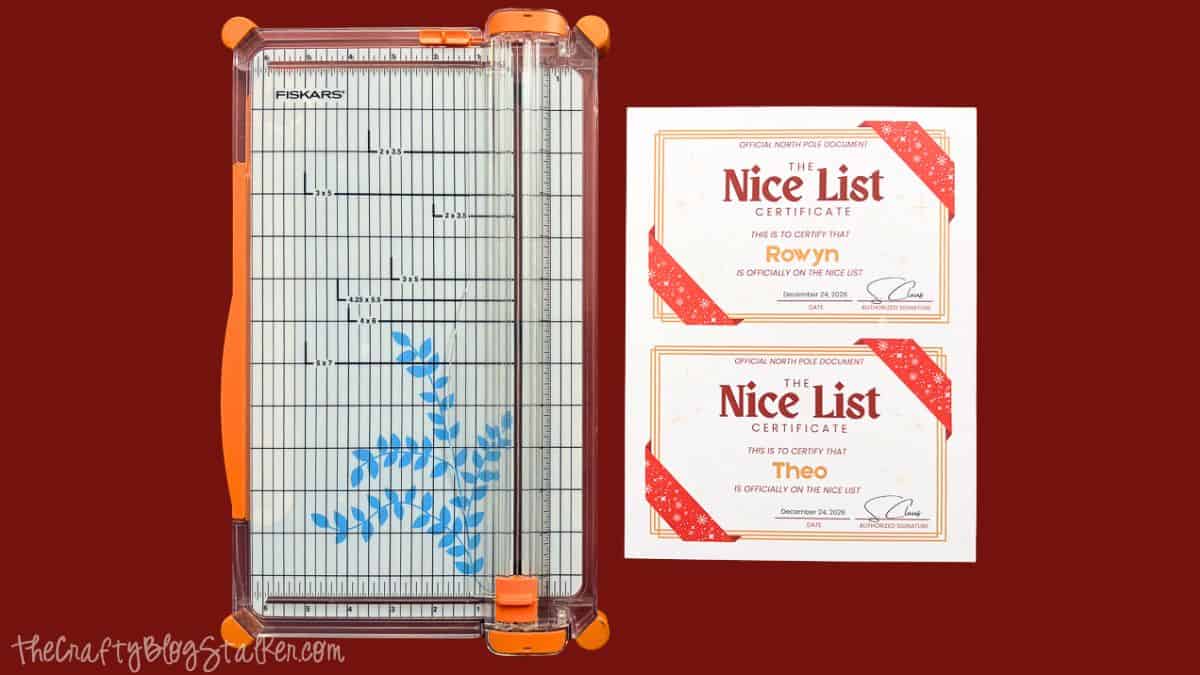
- Paper Trimmer
Grab the Free Canva Template
Before you start, grab the free Nice List Certificate template from my shop.
You don't need to know much about Canva to make these. I'll walk you through each step!
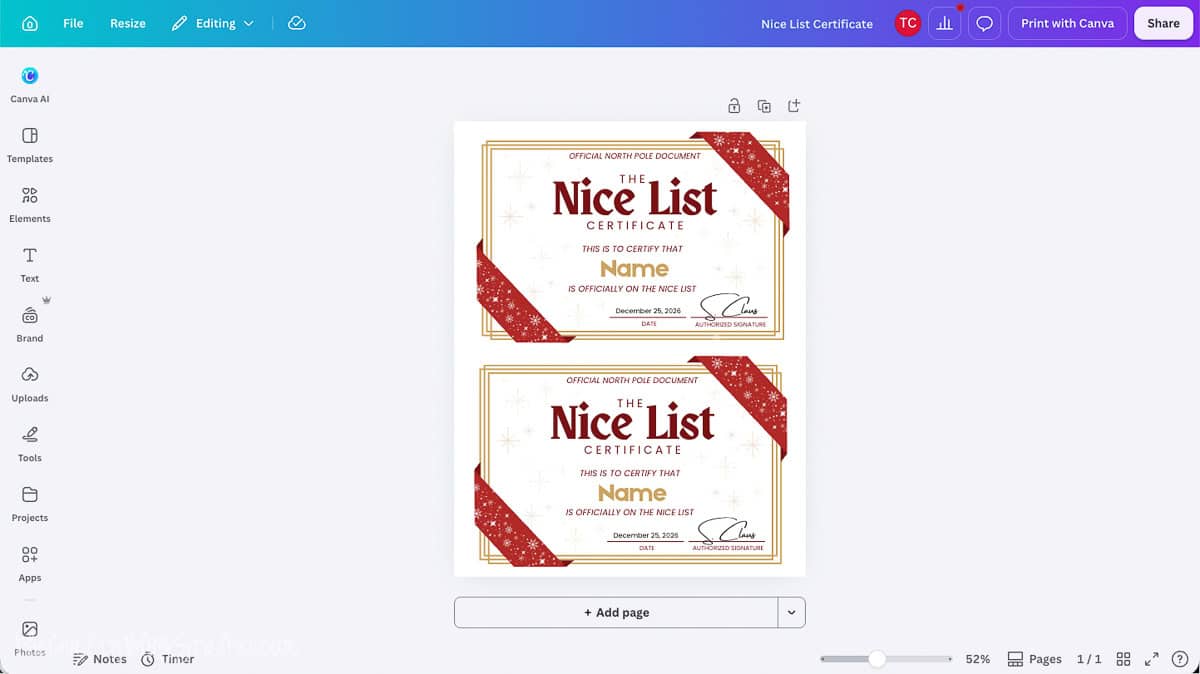
How to Edit the Nice List Certificate in Canva
Once you get the free template, you'll get an email with a link to open it.
Click the link to open the template in Canva.
You do not need Canva Pro to use this template. A free Canva account works just fine.
If you don't have an account, Canva will ask you to make one.
When the template page opens, click View Template.
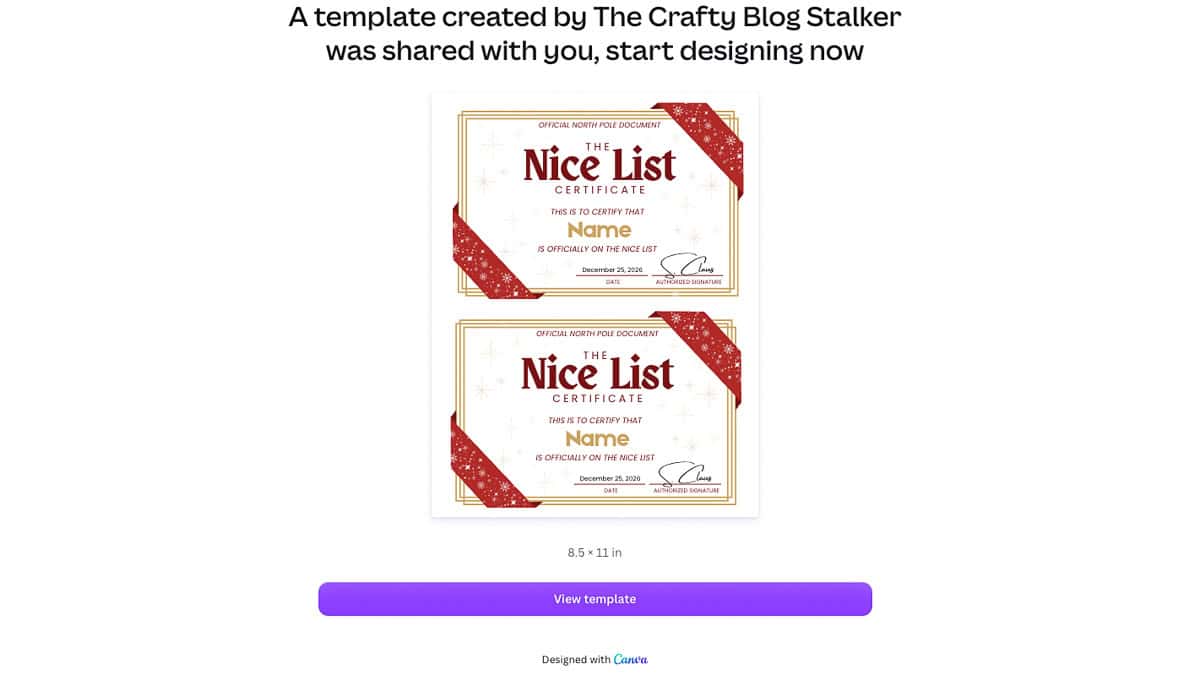
The design is ready for you to use. Most parts are locked, so you won't accidentally move them.
You can change the name and date on each certificate.
Add Your Child's Name
Click the name on the first certificate and type your child's name.
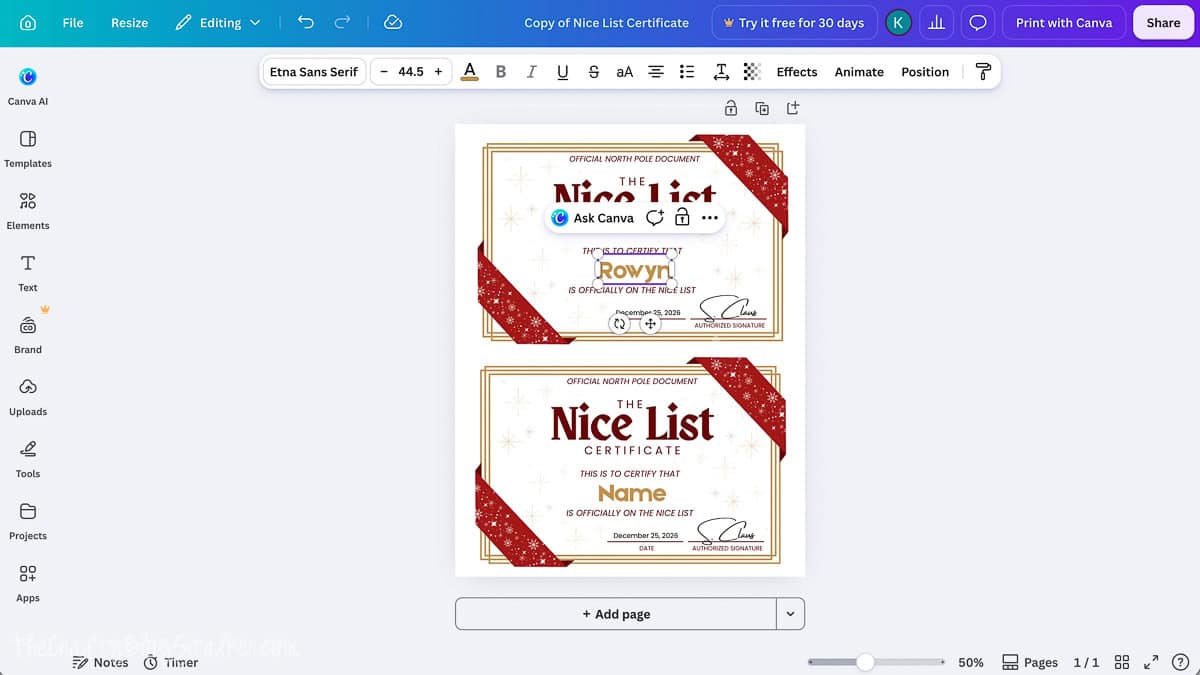
Next, click the date and type the date you want.
Use the day you plan to give the certificate to your child, or Christmas Day.
Do the same for the second certificate.
If you only need one, leave the other name as is. After you print, cut out the one you want.
I like to make a personalized letter or certificate for each child so they each get their own special gift from Santa.
Download Your Certificate
Once you've set the names and dates, save your file.
Click Share in the top-right corner of Canva.
Then click Download.
I choose PDF Print because it works well for home printing.
You can also save the file as a JPG or PNG, but I chose PDF for this project.
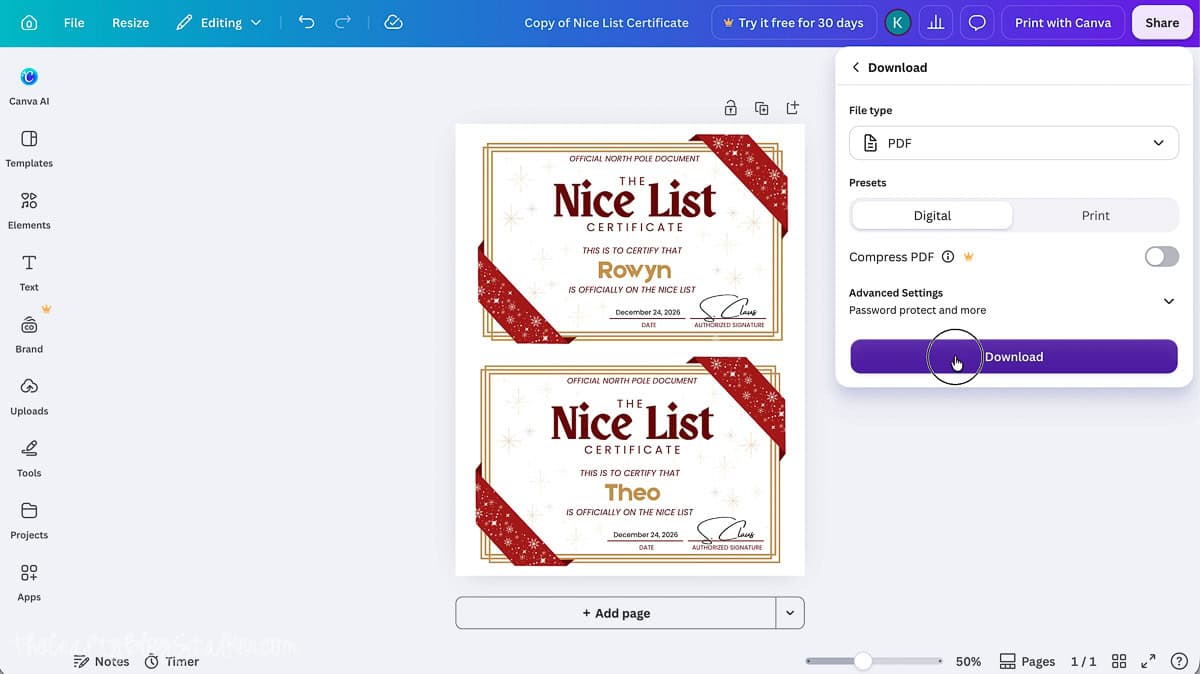
Click Download to save your file.
It will most likely go to your computer's Downloads folder.
Now you're ready to print!
How to Print Your Nice List Certificate
Find the PDF you just saved and open it.
On a Mac, press Command + P. On a Windows computer, press Ctrl + P.
This will open your print settings.
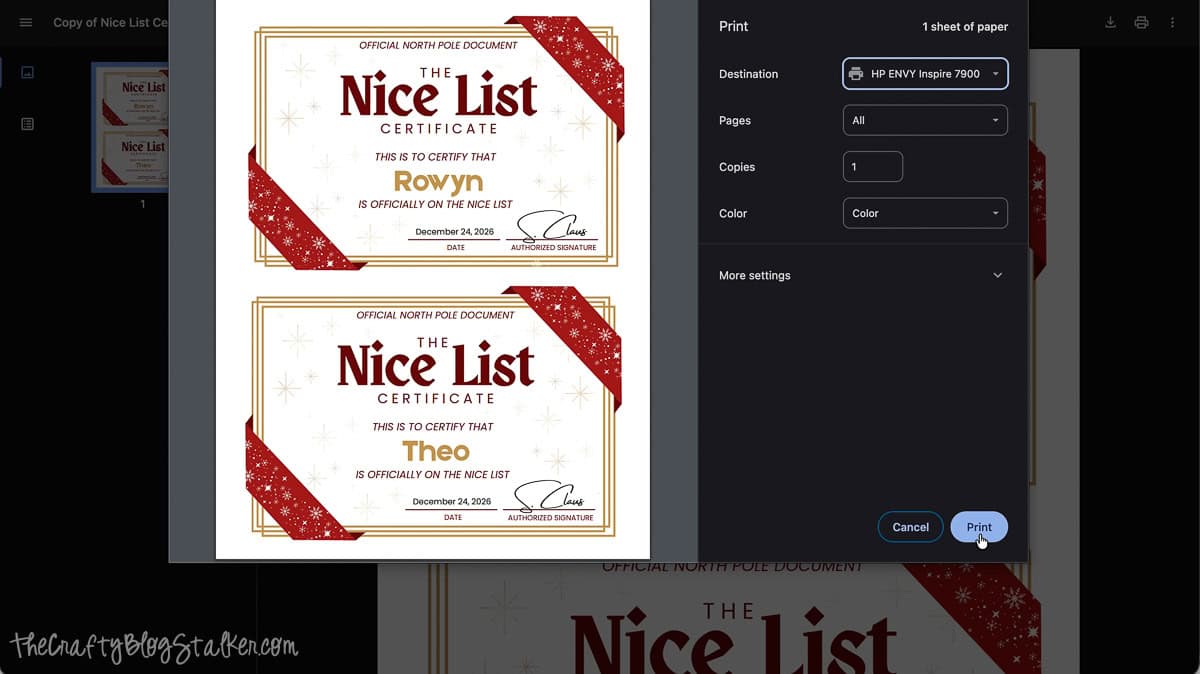
Make sure your printer is set to print in color.
Check the print preview to make sure both certificates fit on the page.
I like to use white or cream cardstock for this project. The thick paper makes the Nice List Certificate feel a bit more like a real award from the North Pole!
Regular printer paper works, too, if that's what you have.
The template is made to print two certificates on one sheet. This template doesn't have a single-certificate option.
Once the settings look right, click Print.
Let the ink dry before you cut the page.
How to Cut the Certificates Apart
Now it's time to cut out your certificates!
I like to use a paper trimmer because it gives me nice, straight cuts.
Scissors will work, too.
Place the printed page on your paper trimmer.
Line up the blade with the space between the two certificates.
Make sure the paper is straight before you cut.
Then slide the blade down to cut the page in half.
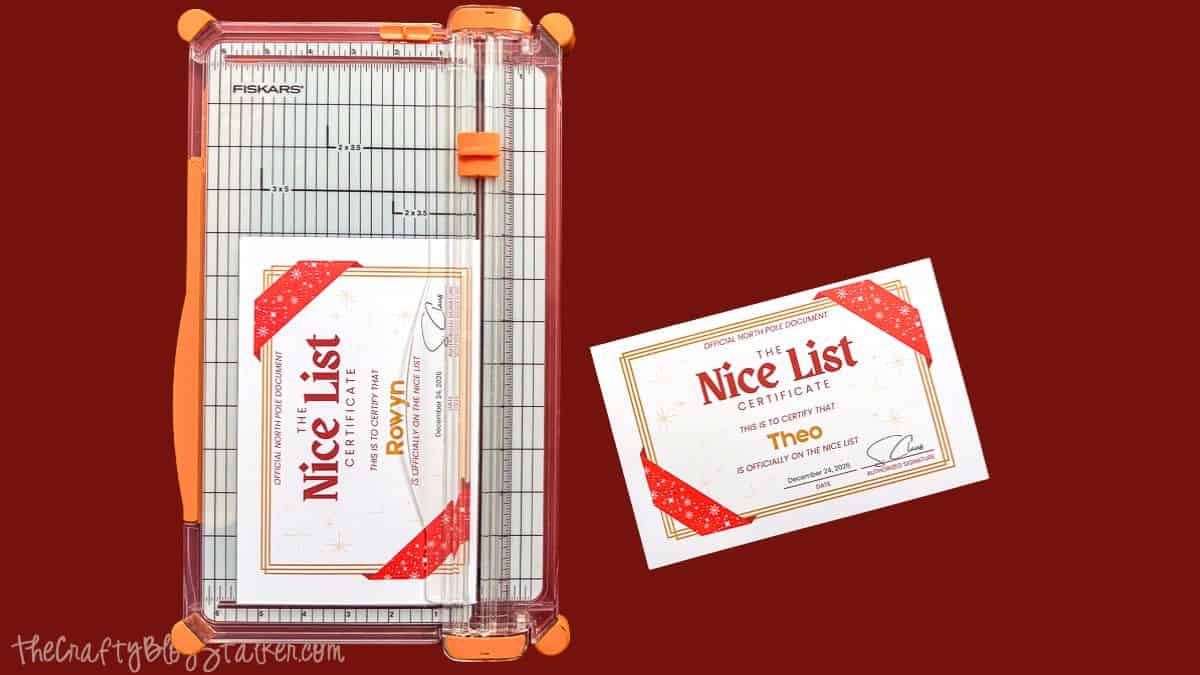
That's it! You now have two cute certificates ready to give to your kids.
I love the gold border, red bows, and Santa's name at the bottom. They make the certificates look so sweet!
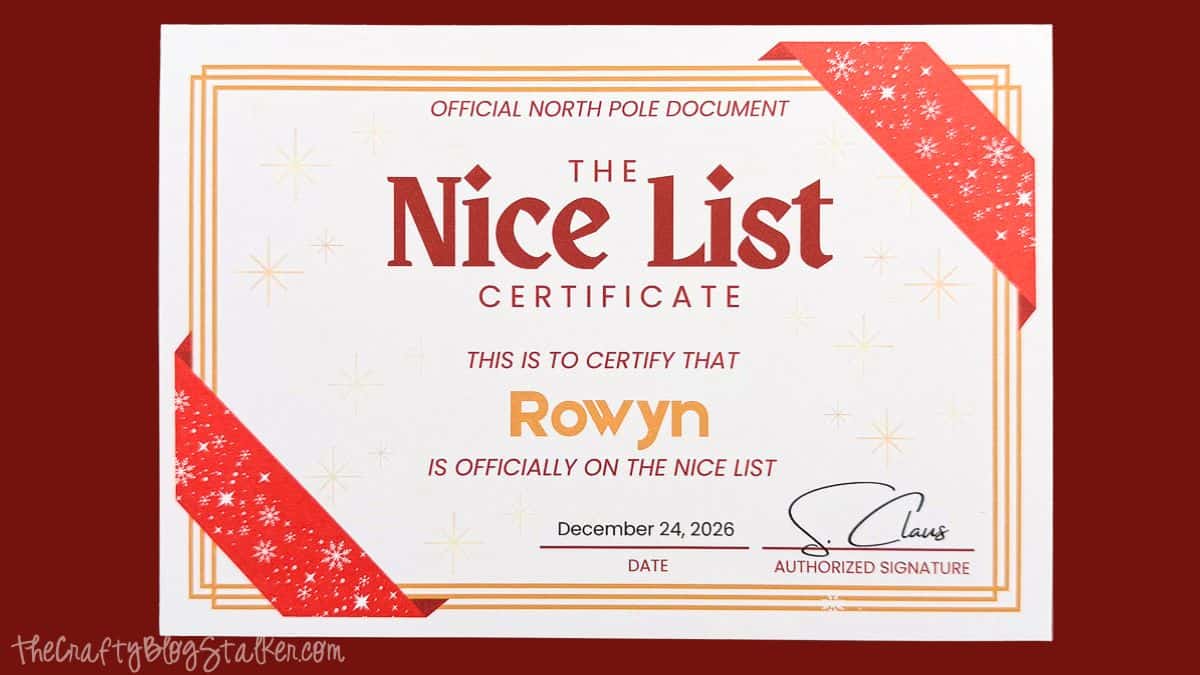
You can tuck the certificate into an envelope, leave it by the Christmas tree, or have your Elf on the Shelf bring it as a gift.
I think it would be so much fun to give these out in November or early December. That way, the kids can enjoy being on Santa's Nice List all season long!
Frequently Asked Questions
Yes! You can get the Canva template for free from my shop. You just need paper, a printer, and a free Canva account.
No. You can use Canva's free version to add your child's name and date.
Yes! You can change the name and date on each certificate. The rest of the design is locked to keep it in place.
The template has two certificates on one sheet, so both will print at once. You can cut out the one you need and save the other for later.
I like white or cream cardstock because it is thick and looks nice. You can also use regular printer paper.
Yes! Just change the names in Canva, then download a new file for each pair. You can print as many copies as you need for your own family.
Need help with this project?
Click a button below to ask AI how to print the certificate without cutting off the edges.
More Christmas Printables
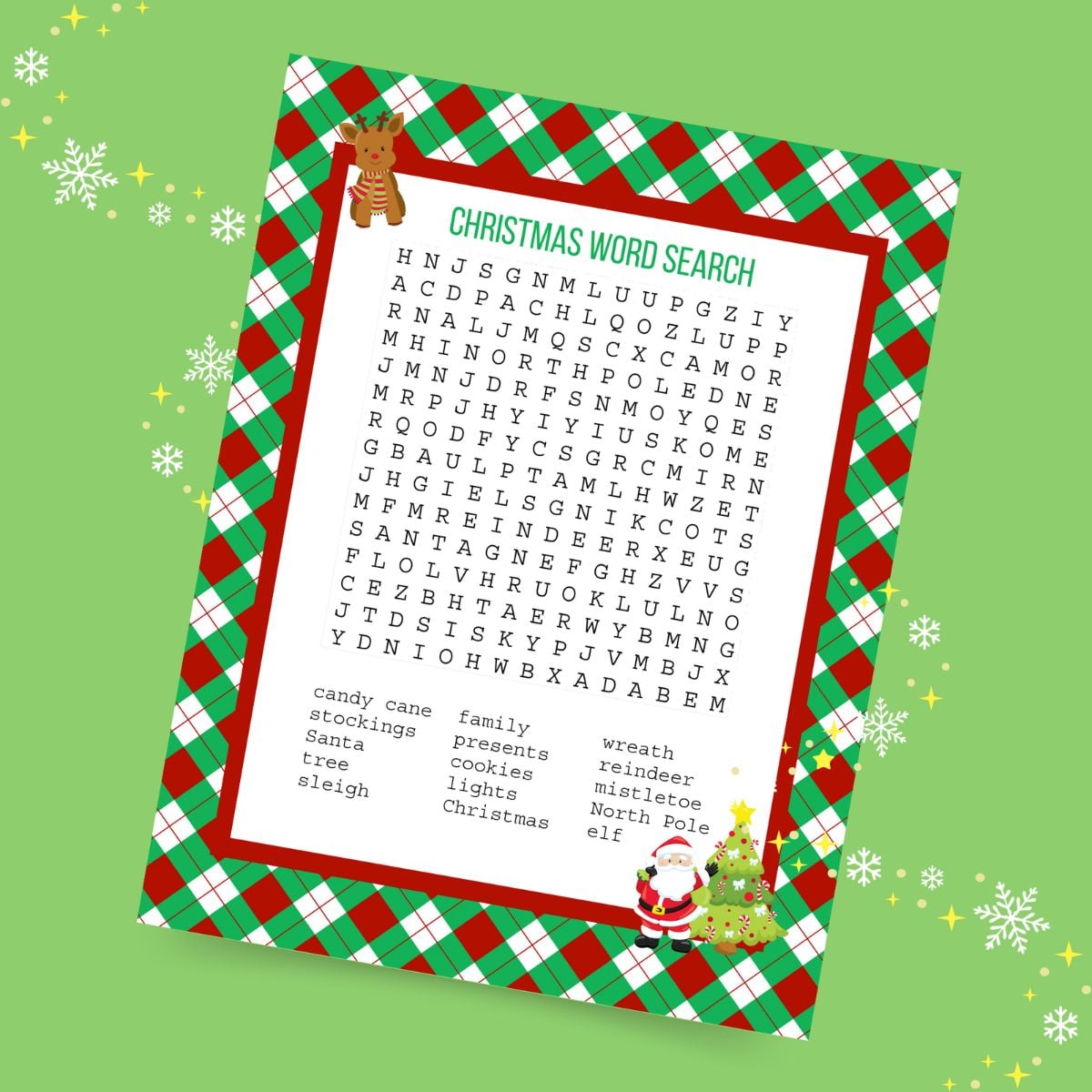
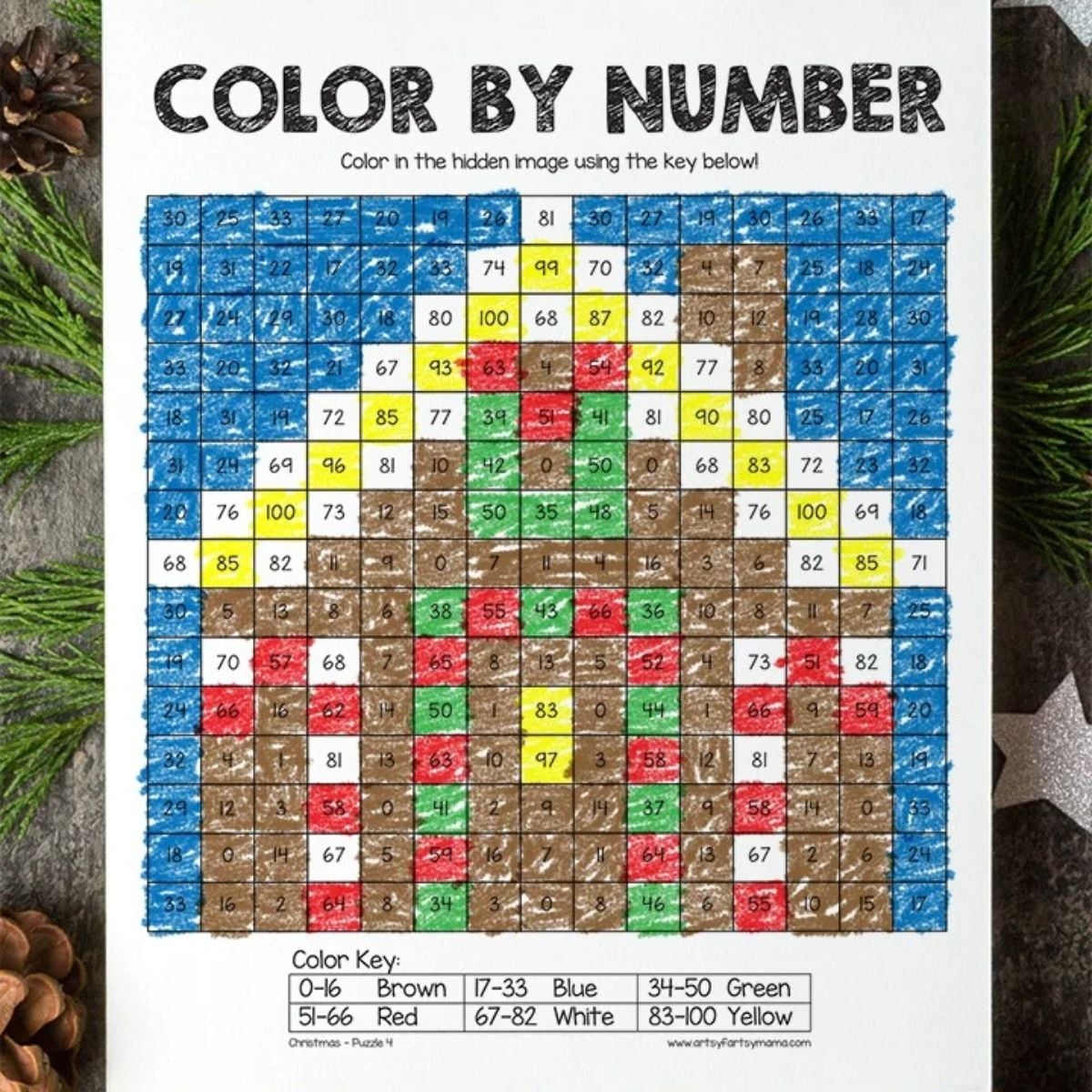
I've teamed up with some blogging friends to bring you even more free Christmas printables! Grab them here.

Hi, I'm Katie!
I'm so glad you're here. Want to make something fabulous? I'm here to help!